
How to Easily Track Art Licenses (and Reclaim Your Old Designs)
Sep 28, 2026Ever looked at an old invoice and thought, wait, what did I charge for that pattern?
Or found out a license ended months ago, and you missed a perfect chance to pitch that art again?
Tracking your inventory is an essential part of owning a small business. (Your designs are your inventory.) You don't need fancy software for this. A simple Google Sheet can keep every deal in one place. Give yourself about 15 minutes to set it up, then update it each time you make a deal.
Tab 1: Deal Sheet (for new enquiries)
This tab is for prospects, before anything is signed. Give each prospect its own row, and add a column for each of the nine answers you need before you quote:
- Product category
- Territory
- Term and start date
- Exclusivity
- Where the products will be sold
- Royalty rate or flat fee
- Any advance
- Whether the client can change the art without your approval
- Whether the product will carry a copyright notice
Now you can see the full scope before you price it. You'll also have a record of what you proposed, even if the enquiry never turns into a contract.
Tab 2: Deal Log (for signed contracts)
The Deal Log is for signed contracts. Create the log using these 8 columns:
- Design
- Licensee
- Category
- Territory
- Exclusive (yes/no)
- Fee or royalty
- Term start
- Term end
Each time you sign a contract, add it in a new row to your Deal Log. Always keep the signed agreement. This sheet is just your quick reference, not a replacement for the contract.
Add dropdowns to keep entries consistent
Turn Category, Territory, and Exclusive into dropdowns that are easy to search later on. You don't want to type "USA" one day and "United States" the next.
- Select the cells.
- Go to Insert > Dropdown (or Data > Data validation > Add rule).
- Add your options.
Want one master list of options? Put it on a third tab, then choose Dropdown (from a range) instead.
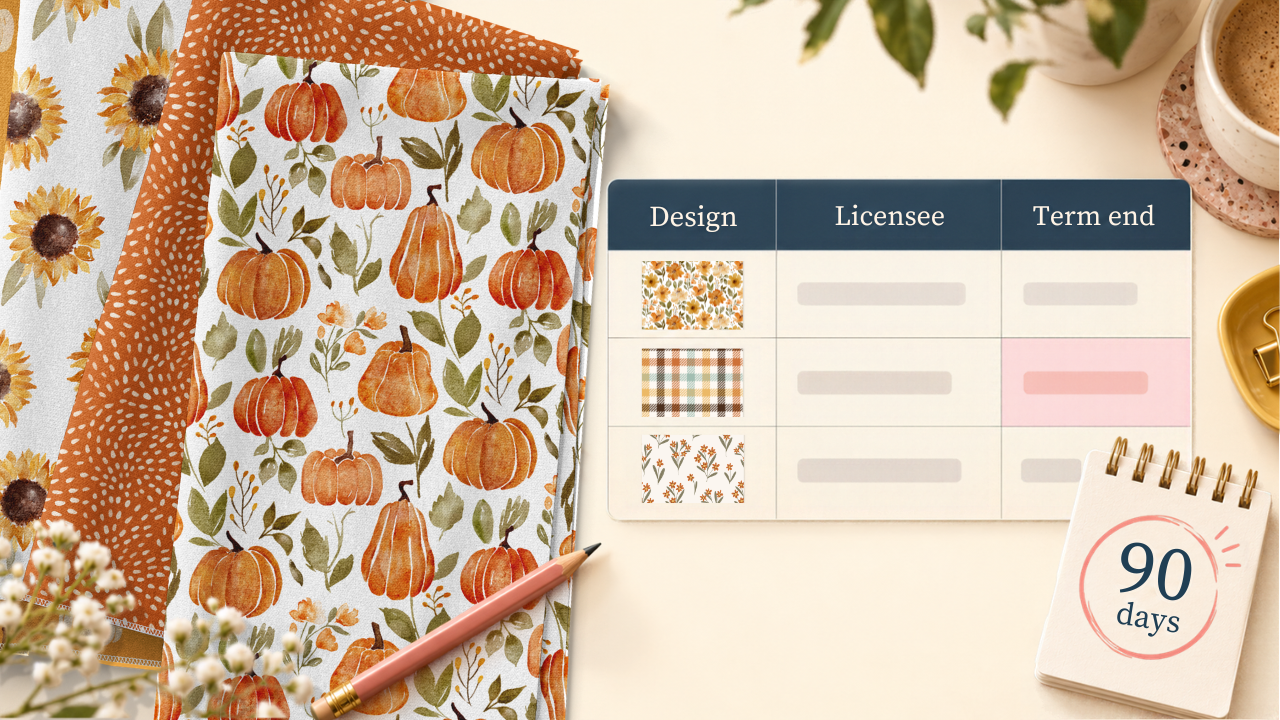
Highlight licenses ending in the next 90 days
This is the magic part. You can make upcoming end dates light up automatically.
-
With Term End in column H and your first deal in row 2, select H2:H.
-
Go to Format > Conditional formatting.
-
Under "Format cells if," choose Custom formula is and paste:
=AND(H2<>"", H2>=TODAY(), H2<=TODAY()+90)
-
Pick a fill color and click Done.
Now any end date between today and 90 days from now will be highlighted.
Heads up: the formula has to match the first cell of your selected range. If your range starts at H3 or G2 - where ever it is, change every H2 in the formula above to H3. Sheets automatically takes care of all the cells below your starting cell.
Check it once a month
Make a habit of opening your Deal Log once a month. When a date lights up, go back to the agreement and check the renewal terms, any sell-off period, and exactly when exclusive rights end.
Then choose your next move: offer a renewal, prepare a new pitch, or line up another license as soon as the contract allows it.
Try it this week. Fifteen minutes now saves you from missing the next renewal.