The Illustrator Navigator Panel Will Change How You Design Patterns
Jan 26, 2026Let me tell you about the most frustrating 20 minutes of my design life last Tuesday.
I was working on this intricate floral pattern—you know, the kind with delicate petal edges that need to be just right. I'd zoomed in to about 400% to perfect a tiny leaf detail. Beautiful. Nailed it.
Then I remembered I needed to check how that leaf looked next to the flower cluster... way over on the other side of my artboard.
So began the dance.
Zoom out (Command + minus, minus, minus...). Scroll across the entire workspace. Zoom back in (Command + plus, plus, plus...). Wait, that's not quite the right spot. Zoom out again. Scroll. Zoom in. Nope, still not it.
By the time I finally found what I was looking for, I'd completely lost my creative flow and was seriously questioning my software choices. (And maybe my life choices. We've all been there.)

Here's the thing: there's a tool that eliminates this entire ridiculous workflow, and it's been sitting in Illustrator this whole time, probably judging us for not using it.
It's called the Navigator Panel, and today I'm showing you exactly why it deserves a permanent spot in your workspace.
What Is the Navigator Panel (And Why Should You Care)?
Before I get into the how-to, let's talk about what this thing actually does.
The Navigator Panel is basically a bird's-eye view of your entire artboard that lives in a small panel on your screen. It shows you a miniature version of everything you're working on, complete with a red box that indicates your current view.
Think of it like having a map while hiking. Sure, you could navigate by just looking at the trail directly in front of you, but wouldn't it be way easier to occasionally check the map to see where you are in relation to everything else?
But here's what makes it truly useful: instead of doing the zoom-in-zoom-out dance, you can click or drag within that mini-view to instantly jump to any part of your artwork.
Boom. Instant navigation.
No more playing "Where's Waldo?" with your own pattern. No more losing your place. No more breaking your creative flow with tedious zooming and scrolling.
When This Tool Actually Shines
I can already hear some of you: "But Mandy, I've got my keyboard shortcuts down! I'm fast with the H key and the spacebar!"
And you're right—those shortcuts are great! I use them too.
But the Navigator Panel isn't about replacing those tools. It's about having a faster option for specific situations where those shortcuts become tedious.
Working on Complex, Detailed Patterns
If you're creating intricate patterns with lots of tiny elements (the kind that makes people comment "How long did this take you?!"), you're constantly zooming in and out.
The Navigator Panel lets you check different areas without losing your zoom level or your place.
You're working on a delicate flower at 600% zoom? Perfect! Click over to the corner of your artboard in the Navigator to check something, then click right back to your flower. You're still at 600% zoom. No adjustment needed.
It's like having a teleportation device built into your workspace.

Checking Pattern Repeats
Surface pattern designers, listen up.
When you're making sure your pattern tiles seamlessly, you need to check all four corners, the edges, and the center. With traditional navigation, that's a lot of scrolling and zooming.
With the Navigator Panel? You just click around your mini-view to each area you need to check. The main view updates instantly.
(It's so satisfying I sometimes do it just for fun. Yes, this is what passes for entertainment sometimes when you've got three kids and work from home.)
Presenting Work to Clients
Imagine you're on a video call with a client, sharing your screen. They ask to see something in the top right corner.
Instead of fumbling with zoom levels while your client watches (awkward!), you simply click that spot in your Navigator Panel. Smooth, professional, and way less stressful.
When Your Wrist Needs a Break
Real talk: repetitive strain injury is a legitimate concern for digital artists. All that clicking, scrolling, and keyboard shortcutting adds up over time.
The Navigator Panel reduces repetitive motions. Less clicking, less scrolling, less strain. Your future wrists will thank you.
How to Find It (Spoiler: It's Been There All Along)
Ready for a quick treasure hunt? Don't worry, it's easier than finding your stylus when you've misplaced it.
Here's the step-by-step:
- Look up at your menu bar at the very top of Illustrator
- Click on "Window"—this opens a dropdown with about a million options
- Scroll until you see "Navigator" (it's usually between "Layers" and "Pathfinder")
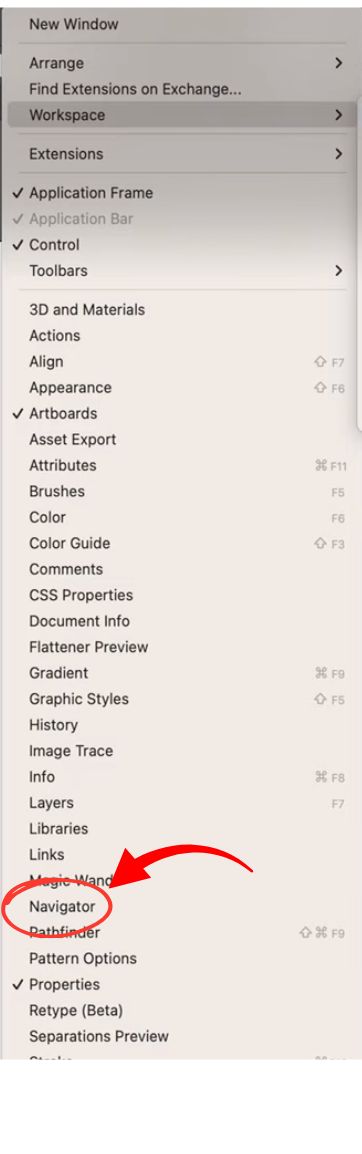
- Click on "Navigator"
- Watch as a new panel appears showing a tiny version of your artwork
Congratulations! You just unlocked a tool that's been hiding in plain sight.
How to Actually Use It
Now that you've got the panel open, let's make it work for you.
The Basics: Click and Drag
See that red box in your Navigator Panel? That's showing your current view—what you're looking at in your main artboard.
To jump to a different area, simply click anywhere in the mini-view or click and drag that red box to pan around. Your main view will instantly update to show that area.
Adjust the Zoom
See that little slider at the bottom of the Navigator Panel? That controls your zoom level.
You can drag the slider to zoom in or out, click the mountain icons on either side for incremental zoom, or type a specific percentage directly in the box.
This means you can control both your location and your zoom level without ever touching your main artboard. Pretty cool, right?
Pro Tip: Resize the Panel
Make your Navigator Panel bigger or smaller by dragging the bottom right corner.
I keep mine fairly large because I work on detailed patterns and want to see as much detail as possible in that mini-view. But if you're working on simpler designs, a smaller panel might work better.
Experiment and find what feels right for your workflow.
My Real-World Integration Story
"Okay Mandy," you're probably thinking, "this sounds useful, but will I actually use it? Or will it just sit there collecting digital dust?"
Valid question! Here's how I actually integrated it into my workflow.
I used to be a keyboard shortcut purist. I thought that was the "professional" way to work. The Navigator Panel seemed unnecessary.
(Yes, I was kind of snobby about it. Not my finest moment.)
Then one day, I was working on a complex pattern with approximately nine million tiny details. I had a deadline. I was stressed. And I was spending more time navigating around my artboard than actually designing.
In desperation, I opened the Navigator Panel.
And I've never looked back.
Now my workflow looks like this:
- I keep the Navigator Panel open and pinned to the right side of my screen
- When doing detailed work, I zoom in using keyboard shortcuts (Command + or - still works great!)
- But when I need to check a different area, I click in the Navigator Panel instead of zooming out
- I use the slider in the Navigator for quick zoom adjustments
- I use traditional shortcuts for everything else
It's not about choosing one method over another—it's about having more tools and using the right tool for the job.
Level Up Your Illustrator Workflow
If you're excited about optimizing your design process (and you should be—efficiency means more time for actual creating!), you'll love diving deeper into professional pattern techniques.
While I'm primarily a Procreate person (you can take my Apple Pencil from my cold, dead hands), I know many designers work across multiple programs. My Procreate Pattern Collection Masterclass teaches design principles that apply regardless of your software—composition, color theory, motif creation, and creating professional collections that licensing agents and manufacturers actually want.
And because working smarter matters more than working harder, my Photoshop Patterns Unleashed course includes the PatternmagicPRO action set with 25+ time-saving tools. (Life's too short to do things the hard way when there's a better option available.)
Want weekly tips on surface pattern design, software hacks, and business strategies? Join my free Weekly Eduletter: 3,2,1...Let's Design. I promise to keep it entertaining. (Unless you're subscribed to some really good newsletters, in which case I'll do my best!)
Your Challenge: Give It One Week
Here's your homework (the fun kind, I promise):
For the next week, commit to keeping the Navigator Panel open while you work in Illustrator.
You don't have to use it for everything. Just keep it visible. When you find yourself about to zoom in and out repeatedly, try clicking in the Navigator Panel instead.
Notice when it feels helpful. Notice when traditional methods work better. Build your own understanding of how this tool fits into your workflow.
After a week, you can decide whether to keep using it. But I'm betting that by day three, you'll wonder how you ever lived without it.

And when you have that "aha!" moment (because you will), tell me about it! Tag me on Instagram @amandagracedesign or reply to my weekly eduletter.
Because here's the thing about these workflow optimizations: individually, they might save you just a few seconds. But add them all up over weeks, months, years? You're talking about hours of time saved.
Hours you could spend actually creating instead of fighting with your software.
Hours you could spend with your family, learning new skills, or just breathing.
That's what these "little" tips are really about. They're about reclaiming your time and energy so you can focus on what matters: making beautiful things that bring joy to the world.
So go forth and navigate! Your artboard is waiting.
(And your future self—the one who's no longer doing the zoom-scroll-zoom dance—is already thanking you.)